Myra uses FontStashSharp for the text rendering.
Font Basics
Sample code for setting font:
byte[] ttfData = File.ReadAllBytes("DroidSans.ttf");

FontSystem fontSystem = new FontSystem();
fontSystem.AddFont(ttfData);
_label1.Font = fontSystem.GetFont(32);
Controlling Text Rendering Quality
By default every dynamic glyph is rasterized once into the texture atlas as a normal alpha bitmap. When such a bitmap is drawn at a size other than the one it was rasterized for, the edges quickly become blurry or pixelated.
Myra provides several quality-related options for text rendering:
- Supersampling - keeps the edges smooth when text is scaled or rotated. Comes from FontStashSharp and is configured through
FontSystemSettings/FontSystemDefaults. - SDF (Signed Distance Field) - keeps the edges crisp at any scale. Comes from FontStashSharp and is configured through
FontSystemSettings/FontSystemDefaults. - Texture filtering - controls how the glyph atlas is sampled. Configured through
MyraEnvironment.TextTextureFiltering.
Supersampling
Supersampling rasterizes each glyph at a higher resolution than the displayed size, then scales it down when drawing, so the edges stay smooth even when text is scaled or rotated. In FontStashSharp it is enabled by FontResolutionFactor (the scale at which glyphs are rasterized relative to the requested size). KernelWidth/KernelHeight apply a small blur pre-filter that helps reduce aliasing; best results are typically obtained with all of them set to 2.
To enable supersampling for a single font, create the FontSystem with explicit settings:
var fontSystemSettings = new FontSystemSettings();
fontSystemSettings.FontResolutionFactor = 2.0f;
fontSystemSettings.KernelWidth = 2;
fontSystemSettings.KernelHeight = 2;

var fontSystem = new FontSystem(fontSystemSettings);
fontSystem.AddFont(ttfData);
_label1.Font = fontSystem.GetFont(32);
To enable supersampling for all of the text rendering, set the defaults before using Myra:
FontSystemDefaults.FontResolutionFactor = 2.0f;
FontSystemDefaults.KernelWidth = 2;
FontSystemDefaults.KernelHeight = 2;
See FontStashSharp's supersampling documentation for more details.
SDF (Signed Distance Field)
Instead of storing per-pixel alpha coverage, an SDF glyph stores the signed distance to the glyph outline, and a shader converts it back to alpha at draw time. Because the inside/outside transition is recomputed per pixel, the edges stay crisp at any scale, and effects like shadows are computed from the same distance data.
SDF is enabled per FontSystem through FontRasterizationMode:
var fontSystemSettings = new FontSystemSettings
{
	FontRasterizationMode = FontRasterizationMode.SDF
};

var fontSystem = new FontSystem(fontSystemSettings);
fontSystem.AddFont(ttfData);
_label1.Font = fontSystem.GetFont(32);
To enable SDF for all of the text rendering, set the default before using Myra:
FontSystemDefaults.FontRasterizationMode = FontRasterizationMode.SDF;
Myra renders text automatically. If the font's rasterization mode is SDF, the text is drawn with its internal SDFTextBatch, so you don't need to create one yourself.
FixedSDFFontSize
An SDF glyph is resolution-independent, which means a single distance field can serve all sizes. FixedSDFFontSize rasterizes the glyphs once at a fixed size and reuses that same distance field for every requested size (scaled with a ScaledSpriteFont), which saves texture space in the atlas since duplicate glyph bitmaps are not stored.
var fontSystemSettings = new FontSystemSettings
{
	FontRasterizationMode = FontRasterizationMode.SDF,
	FixedSDFFontSize = 64
};
or, for all font systems:
FontSystemDefaults.FixedSDFFontSize = 64;
When FixedSDFFontSize is left unset (null, the default), the font is rasterized directly at the requested size.
See FontStashSharp's signed distance field rendering documentation for more details. It also contains a sample showing ordinary rendering, supersampling and SDF side by side.
Texture Filtering
MyraEnvironment.TextTextureFiltering controls the GPU texture filtering used when sampling the glyph atlas. This affects how the pre-rasterized glyph bitmaps are interpolated on screen and is most visible when text is scaled or rotated.
The default value is TextureFiltering.Nearest. Available options:
Nearest- crisp, sharp edges. Good for small unpixel-perfect sizes or a pixelated look.Linear- bilinear interpolation; softer, smoother edges.Anisotropic- highest quality filtering.
MyraEnvironment.TextTextureFiltering = TextureFiltering.Linear;
This setting only applies to text rendered in the standard rasterization mode. Text rendered with SDF is drawn through FontStashSharp's internal SDFTextBatch shader, which handles its own edge rendering. MyraEnvironment.SmoothText is the obsolete predecessor of this property.
See MyraEnvironment for more settings.
Scaling Sample
The Scaling sample demonstrates everything covered above next to each other.
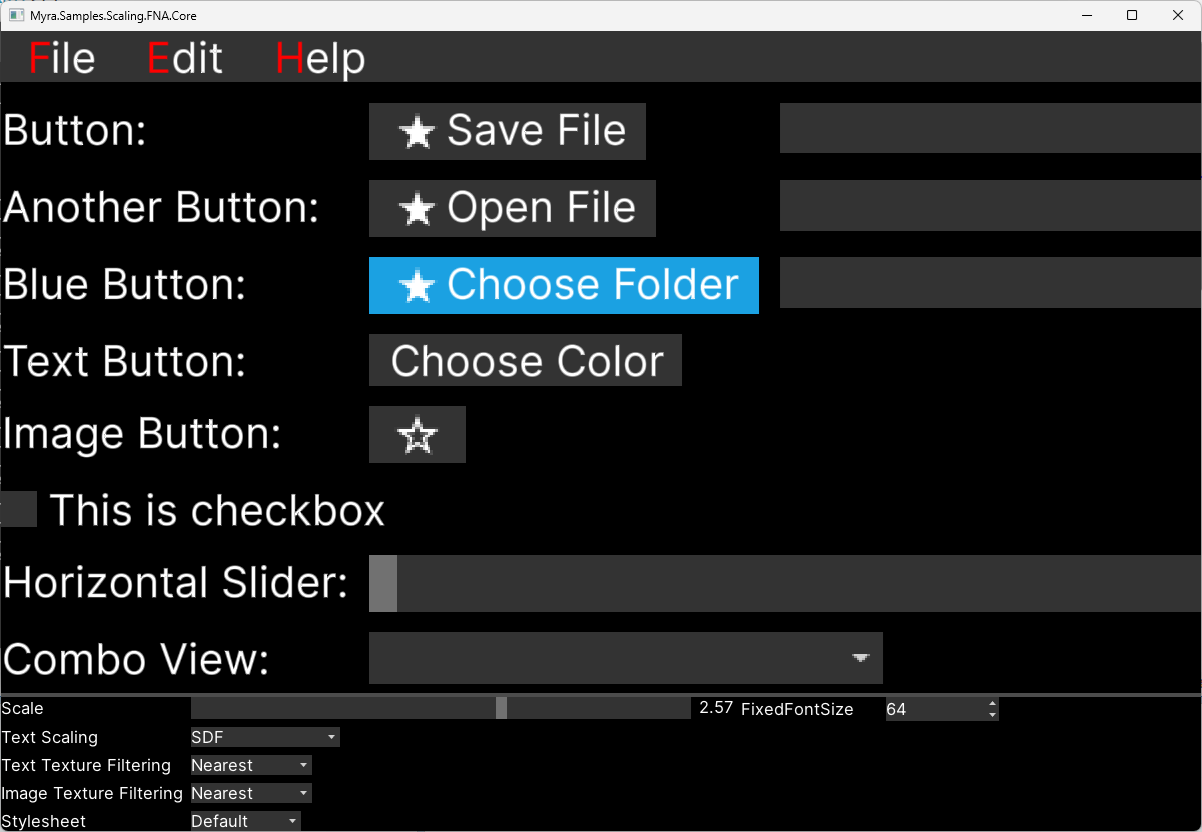
A slider scales the whole UI by changing the widget tree's Scale property (0.2 to 4.0), so the effect of each quality option on scaled text becomes visible immediately.
- The Text Scaling combo switches between the rasterization approaches: None (standard rasterization), Supersampling, and SDF, using
FontSystemDefaults. - The property grid below it lets you tweak the parameters of the selected approach live:
FontResolutionFactor,KernelWidthandKernelHeightfor supersampling,FixedFontSizefor SDF. - The Text Texture Filtering combo sets
MyraEnvironment.TextTextureFiltering(Nearest,Linear,Anisotropic). - The Image Texture Filtering combo sets
MyraEnvironment.ImageTextureFiltering(Nearest,Linear,Anisotropic) for the widget images. - The Stylesheet combo switches the used stylesheet between
DefaultandDefault2X, so you can compare how the higher-resolution assets hold up when the UI is scaled up or down.